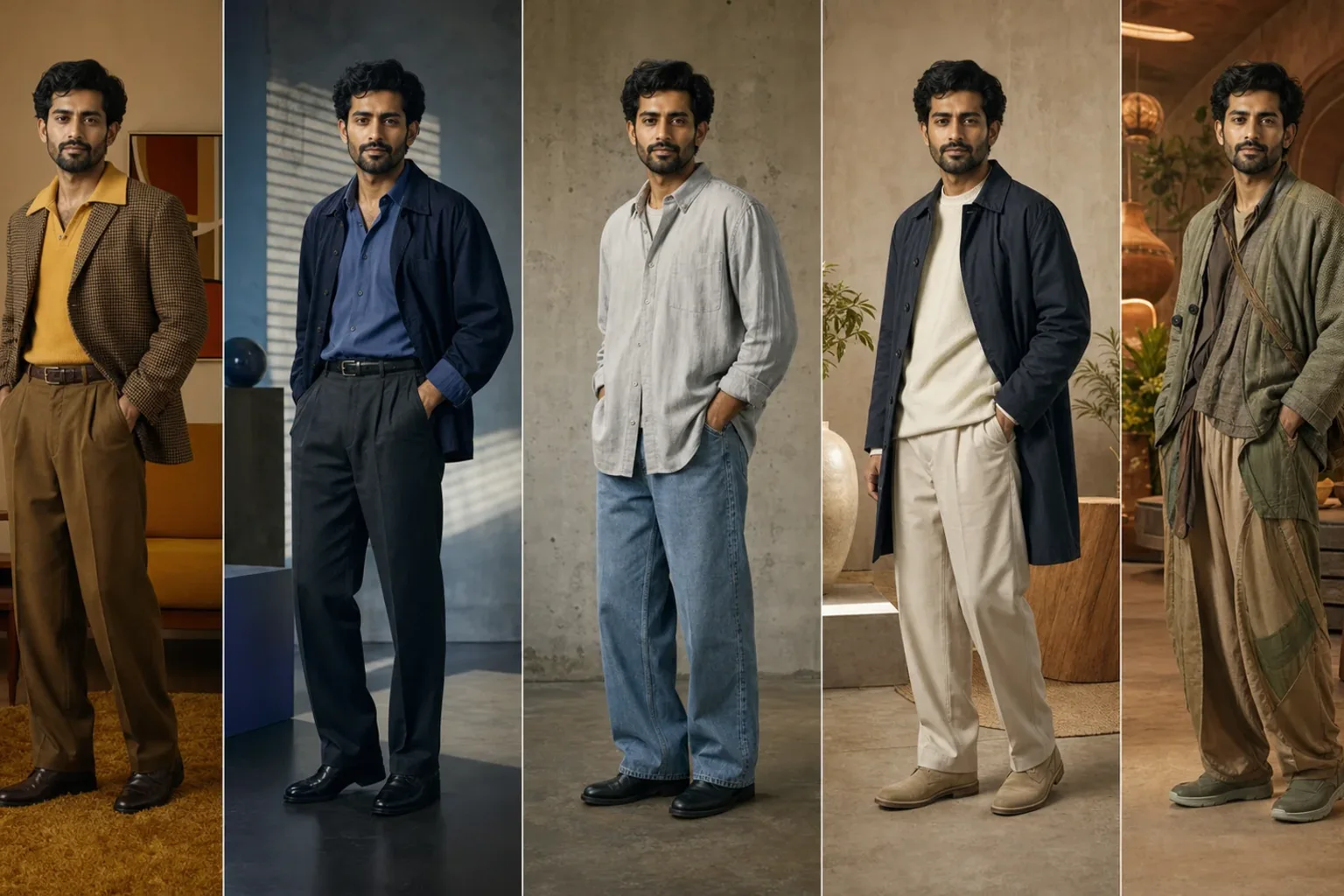
Create transformation effects
Move between coordinated worlds, eras, materials, or character treatments while preserving the person or object that makes the clip recognizable.
Build a Portal TransitionStart from a portrait, product, clip, song, or rough hook. Pixtor gives popular social formats a directed workflow—so the result feels current, but the subject, brand, and idea still feel like yours.
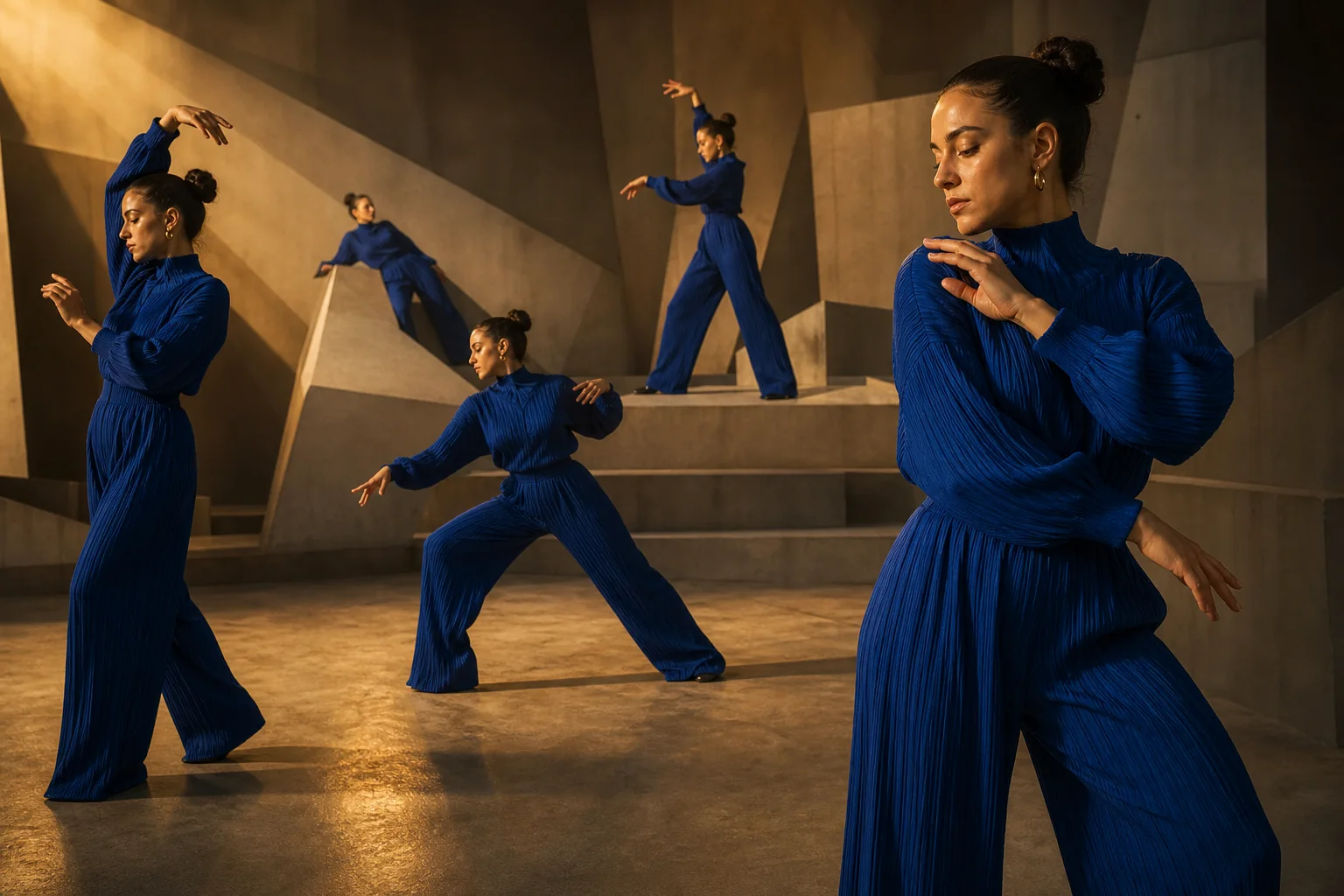
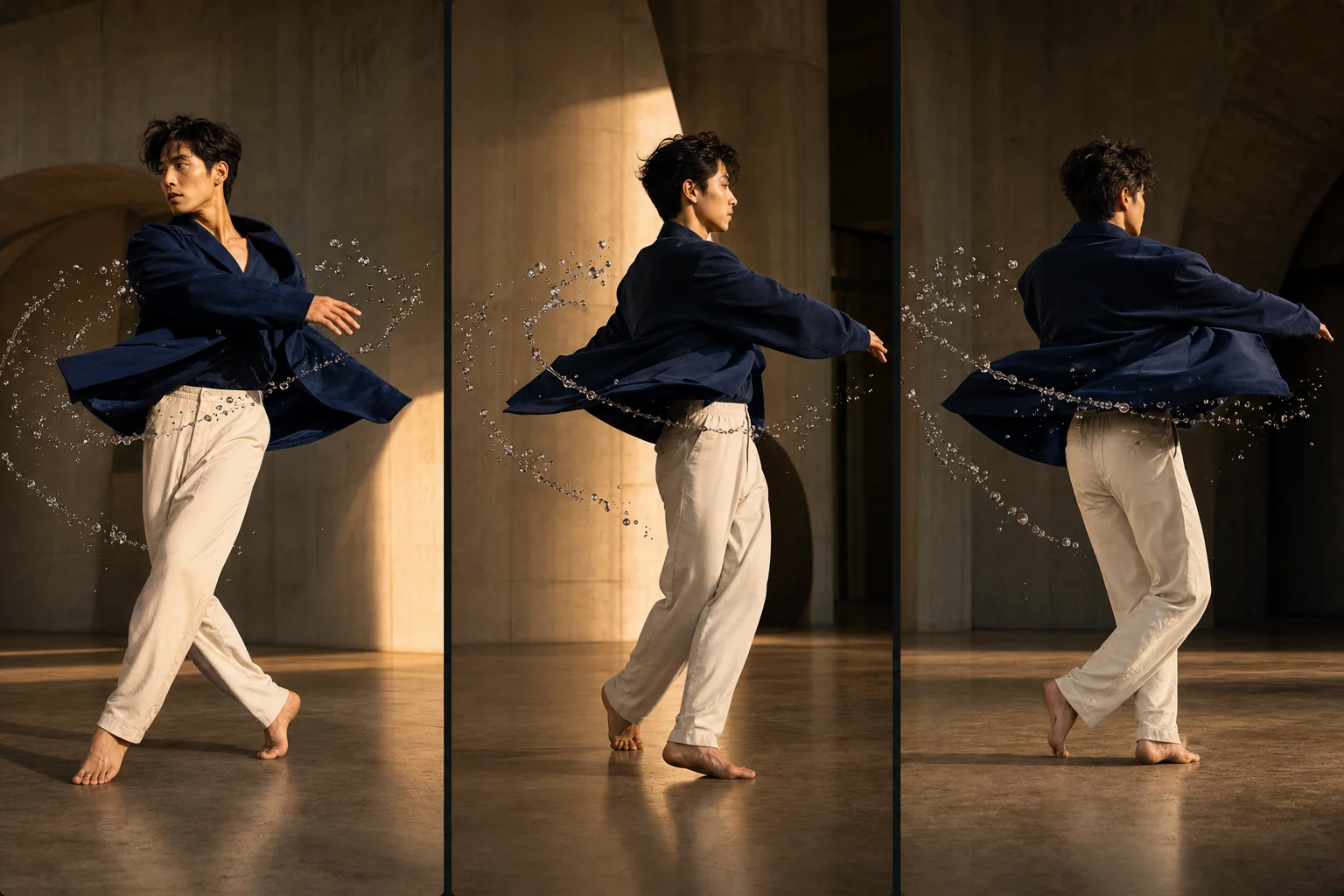
AI can help create short-form transformations, seamless loops, impossible camera moves, synchronized clones, product reveals, UGC sequences, music-driven edits, and reframed versions for different feeds. The strongest results come from combining a recognizable format with an original subject, specific hook, clear timing, and references you have permission to use.
Move between coordinated worlds, eras, materials, or character treatments while preserving the person or object that makes the clip recognizable.
Build a Portal TransitionPlan a clean start/end match, restrained camera motion, and a visual beat that can replay without an obvious jump.
Create a Seamless LoopTurn a product and audience insight into a handheld vertical concept with beats, product interaction, framing, and claim boundaries.
Open UGC DirectorStart with the behavior you like: a transition, loop, reveal, clone, camera move, performance beat, or creator-style demonstration.
Attach the consenting person, product, vehicle, place, audio, or brand reference that makes the concept specific to you.
Set the frame, motion, timing, transition logic, aspect ratio, and ending before choosing a model and reviewing the quote.
A format can be familiar without cloning someone else’s post, identity, character, choreography, or brand. Pixtor helps describe the visual mechanism and rebuild it around your own permitted material.
Yes. You can configure vertical short-form video and use Smart Reframe to adapt existing creative to different aspect ratios. Always review each platform’s current publishing and advertising rules.
No. The workflows describe reusable visual mechanisms such as portals, loops, clones, reframes, or camera effects. You should supply original direction and media you are allowed to use.
Yes, with your own photo or media you have permission to use. Identity-aware workflows try to preserve facial structure and recognizable features throughout the transformation.
Yes. Product Orbit, Floating Packshot, UGC Director, Portal Transition, and several other workflows can turn a product reference into a short-form visual concept.
BeatForge accepts audio-led direction for rhythmic cuts and motion. Make sure you have the necessary rights to the audio you upload and publish.
Attach your context, review the complete generation brief, choose a compatible model, and see the exact credit quote before anything runs.